

Connecting your smartphone to your car is easier than ever, and wireless technology is making tangled charging cables a thing of the past. Apple CarPlay and Android Auto allow drivers to access navigation, music, messages, and other useful apps through their vehicle’s infotainment screen. Wireless versions take convenience a step further by connecting automatically without plugging in a phone. Understanding how the technology works, what features it offers, and which vehicles support it can help drivers make the most of their connected driving experience.
What Are Apple CarPlay and Android Auto?
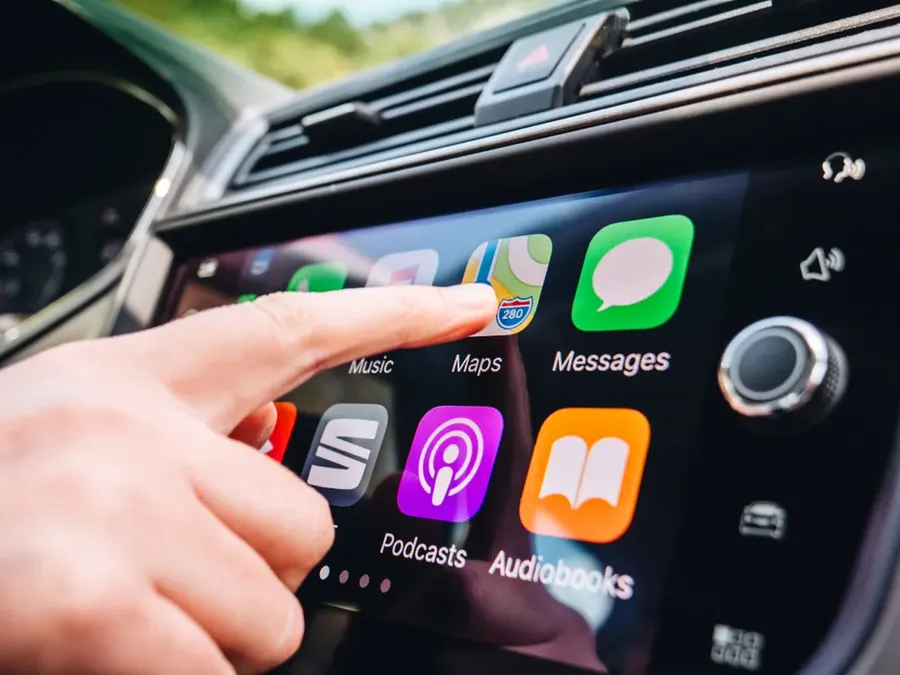
Apple CarPlay and Android Auto are smartphone integration systems that bring selected phone features onto a vehicle’s infotainment display. Apple CarPlay works with compatible iPhones, while Android Auto is designed for supported Android smartphones. Both systems provide simplified interfaces with large icons and voice controls, making it easier to access navigation, calls, messages, and entertainment while driving. Rather than using your phone’s regular screen, you interact with supported apps through the car’s display and controls.
Unlike a vehicle’s built-in infotainment software, CarPlay and Android Auto rely on a connected smartphone to run their supported apps and provide much of their functionality. The car acts as the display and control interface, while the phone handles tasks such as navigation processing, internet connectivity, and music streaming. Both systems are designed to reduce the need to handle a phone while driving, although drivers still need to avoid distracting interactions with the screen.
How Wireless Connections Actually Work
Wireless Apple CarPlay and Android Auto use Bluetooth and Wi-Fi to connect a smartphone to a compatible vehicle. Bluetooth generally helps establish the initial connection and allows the devices to recognize one another. Wi-Fi then handles the larger amounts of data needed to display maps, play audio, and support the infotainment interface. The combination allows information to move between the phone and vehicle without requiring a physical USB connection.
After the initial setup, many vehicles automatically reconnect when the driver starts the car and the paired phone is nearby. The exact process depends on the vehicle’s infotainment system and smartphone settings. Some cars require drivers to enable wireless smartphone integration through a settings menu, while others provide pairing instructions directly on the display. Wireless connections can be convenient for everyday driving, especially when making frequent stops, but both the phone and vehicle must support the wireless version of the technology.
What You Can Do With Wireless CarPlay and Android Auto
Navigation is one of the most useful features offered by both systems. Drivers can use compatible mapping apps to receive turn-by-turn directions, view traffic conditions, and search for destinations directly through the vehicle’s screen. Apple CarPlay supports apps such as Apple Maps and Google Maps, while Android Auto offers Google Maps and other compatible navigation services. Depending on the app, drivers may also receive traffic updates and alternative route suggestions during their trip.
Entertainment and communication features are equally important. Supported music, podcast, and audiobook apps can play through the vehicle’s speakers, while incoming calls and messages can be managed using compatible controls. Voice assistants, including Siri for CarPlay and Google Assistant or supported Google voice features for Android Auto, allow drivers to request directions, make calls, and control certain apps without manually navigating menus. However, not every smartphone app is available because both platforms restrict which applications can appear on the vehicle’s display.
How to Set Up a Wireless Connection
Before connecting, check whether your vehicle supports wireless Apple CarPlay or Android Auto. Some vehicles offer only wired connections, even when Bluetooth calling and music streaming are available. You’ll also need a compatible smartphone with the required software and wireless settings enabled. Vehicle manufacturers often provide setup instructions in the owner’s manual or infotainment settings, so checking those directions can save time during the initial pairing process.
For many vehicles, setup begins by enabling Bluetooth and Wi-Fi on your phone, then selecting the smartphone connection option on the car’s display. You may need to pair the devices through Bluetooth and approve permission requests on both screens. Once connected, the CarPlay or Android Auto interface should appear on the infotainment display. Future connections often happen automatically when you enter the vehicle. If pairing fails, restarting the devices, checking software updates, or removing an old connection before pairing again may help resolve the issue.
Wireless vs. Wired Connections: What’s the Difference?
The biggest advantage of wireless CarPlay and Android Auto is convenience. Drivers can leave their phones in a pocket, purse, or designated storage compartment while still accessing supported apps through the infotainment system. There’s no need to connect a cable every time you enter the vehicle, making wireless integration particularly useful for short trips and frequent stops. Automatic reconnection also helps simplify the experience once the initial setup is complete.
However, wired connections still have some advantages. Connecting through USB generally provides a stable data connection while charging the phone, whereas wireless integration uses battery power unless the vehicle has a separate wireless charging pad. Wireless connections may also experience occasional delays, interruptions, or compatibility problems depending on the vehicle and phone. Some drivers prefer using a cable during longer trips to maintain battery charge. Neither option is universally better, and the ideal choice often depends on convenience, charging needs, and how reliably the system works.
Common Problems and How to Fix Them
Wireless smartphone integration doesn’t always work perfectly. Common complaints include failed connections, delayed audio, unexpected disconnections, or an infotainment screen that doesn’t recognize the phone. Problems may occur after smartphone software updates, changes to vehicle settings, or interference from nearby wireless devices. In some cases, a phone may connect through ordinary Bluetooth audio without launching CarPlay or Android Auto because the wireless projection feature hasn’t been properly enabled.
Start troubleshooting by confirming that Bluetooth and Wi-Fi are active and that the vehicle still recognizes the paired smartphone. Restarting the phone and infotainment system can resolve temporary glitches. If problems continue, delete the existing connection from both devices and complete the pairing process again. Keeping phone software and vehicle infotainment software updated may also improve compatibility. If wireless integration remains unreliable, consult the manufacturer’s support instructions. Some connection problems are specific to particular phone models or infotainment systems and may require a software update or professional assistance.
Making Everyday Driving More Connected
Wireless Apple CarPlay and Android Auto make it easier to access familiar smartphone features without repeatedly connecting cables or handling a phone. By combining Bluetooth and Wi-Fi, the systems bring navigation, entertainment, and communication tools directly onto a compatible vehicle’s infotainment screen. Voice commands and simplified controls can make everyday interactions more convenient, particularly for drivers who regularly use their phones for directions or music.
However, convenience shouldn’t replace safe driving habits. Even with voice controls and a simplified interface, interacting with apps can still distract drivers from traffic conditions. Setting navigation and entertainment preferences before leaving helps minimize unnecessary screen use. With a compatible vehicle, properly configured smartphone, and sensible driving habits, wireless smartphone integration can make daily trips more enjoyable while keeping useful information within easy reach.